How to Remove Silence from Audio

Quick answer
To remove silence from audio, detect the quiet stretches between words or sentences, shorten long pauses rather than deleting them entirely, and add short fades so the joins sound smooth. Keep natural breathing gaps; remove only dead air. An editor that marks long pauses automatically makes this a one-click job.
Key takeaways
- Shorten pauses instead of deleting them: zero gaps between sentences sound rushed and robotic.
- As a rule of thumb, keep about 0.4–0.8 seconds between sentences and 0.8–1.5 seconds between paragraphs.
- Clean background noise first; silence detection works better on clean audio.
- The VoiceMax Audio Editor marks long pauses automatically and lets you shorten them in one click, right in your browser.
- If your audio has subtitles, re-time them after cutting so captions stay in sync.
What "removing silence" actually means
Removing silence means cutting or shortening the stretches of a recording where nothing useful is said. That includes long gaps between sentences, the dead air before someone starts talking, trailing silence at the end, and the pause where a speaker lost their place.
It does not mean removing every quiet moment. Speech needs small gaps to breathe. When you remove all of them, sentences run into each other and the audio sounds machine-made, even if the voice itself is human.
The goal is pacing: tight enough to hold attention, loose enough to sound natural.
Common sources of dead air
| Source | What it sounds like | Typical fix |
|---|---|---|
| Lead-in silence | Several seconds of nothing before the first word | Trim the start, add a short fade-in |
| Thinking pauses | Long gaps mid-recording while the speaker reads ahead | Shorten to a normal sentence gap |
| Retakes | A misread line, a pause, then the line again | Cut the mistake and the pause together |
| Trailing silence | Silence after the last sentence | Trim the end, add a short fade-out |
| AI voice pauses | Extra-long gaps around ellipses or line breaks in the script | Shorten in the editor, or adjust the script punctuation |
How long should pauses be? (rules of thumb)
There is no single correct pause length; it depends on the content and the speaker. The ranges below are common rules of thumb used in narration and podcast editing. Treat them as starting points, then trust your ears.
| Pause type | Rule-of-thumb length | Notes |
|---|---|---|
| Comma or short breath | About 0.2–0.4 seconds | Usually leave these alone |
| Between sentences | About 0.4–0.8 seconds | The most common place to trim long gaps |
| Between paragraphs or topics | About 0.8–1.5 seconds | Signals a change of idea |
| Before a key point or reveal | Up to about 1–2 seconds | A deliberate pause adds weight; keep it if it is intentional |
| Social video (fast-paced) | Toward the shorter end of each range | Short-form viewers expect brisk pacing |
| Audiobooks and meditation | Toward the longer end of each range | Listeners need time to absorb |
A simple test: play the edited section at normal speed without looking at the waveform. If you notice a cut, it is too tight. If you notice yourself waiting, it is too long.
Three ways to remove silence from audio
You can remove silence with an online editor, a desktop audio program, or by hand. The right choice depends on how often you do it and how much control you need.
| Method | Best for | Speed | Learning curve | Notes |
|---|---|---|---|---|
| Online editor with automatic pause detection (e.g. VoiceMax Audio Editor) | Voiceovers, AI narration, podcast clips | Fast: pauses are marked for you | Low | Works in the browser; no installation |
| Free desktop audio editors with "truncate silence" style effects | Long recordings, batch work | Fast once configured | Medium | You set a silence threshold and minimum duration |
| Manual cutting in a video or audio editor | Short clips, precise creative timing | Slow | Medium to high | Full control, but tedious on long files |
Whichever tool you use, the underlying steps are the same: find the silence, decide how much to keep, cut, and smooth the joins.
Step-by-step: remove silence with the VoiceMax Audio Editor
The VoiceMax Audio Editor is built for spoken audio. It marks long pauses on the timeline automatically, so you spend your time deciding, not hunting through the waveform.
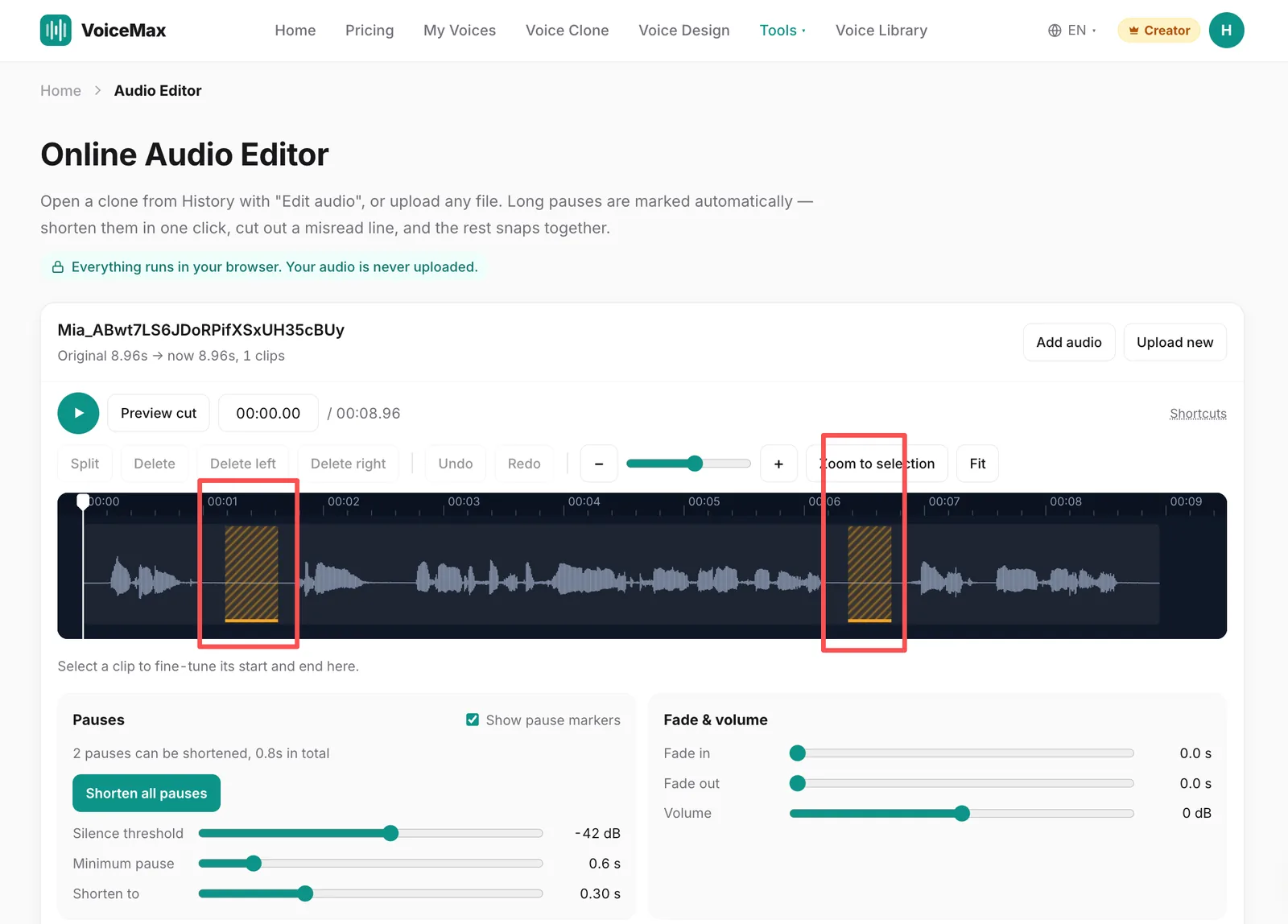
- Open your audio. Go to History and click Edit audio on any generation, or open the Audio Editor and upload a file. It accepts MP3, WAV, M4A, AAC, FLAC, and OGG files up to 200 MB each. Select several files to join them in order, up to 20 minutes in total.
- Review the marked pauses. The editor scans the recording for silence between spoken sections and marks the long ones on the timeline. By default, a pause counts as "long" when it lasts more than 0.6 seconds below a −42 dB silence threshold; you can change both in the Pauses panel.
- Shorten, don't delete. Click Shorten all pauses to trim every marked pause to 0.3 seconds (adjustable), or shorten them one by one. You decide which ones to shorten, so intentional dramatic pauses can stay.
- Cut mistakes. If a line was misread, cut it out; the remaining audio joins up on its own.
- Smooth the edges. Add a fade-in at the start and a fade-out at the end, and adjust volume if needed.
- Export. Download the edited audio as MP3 or WAV.
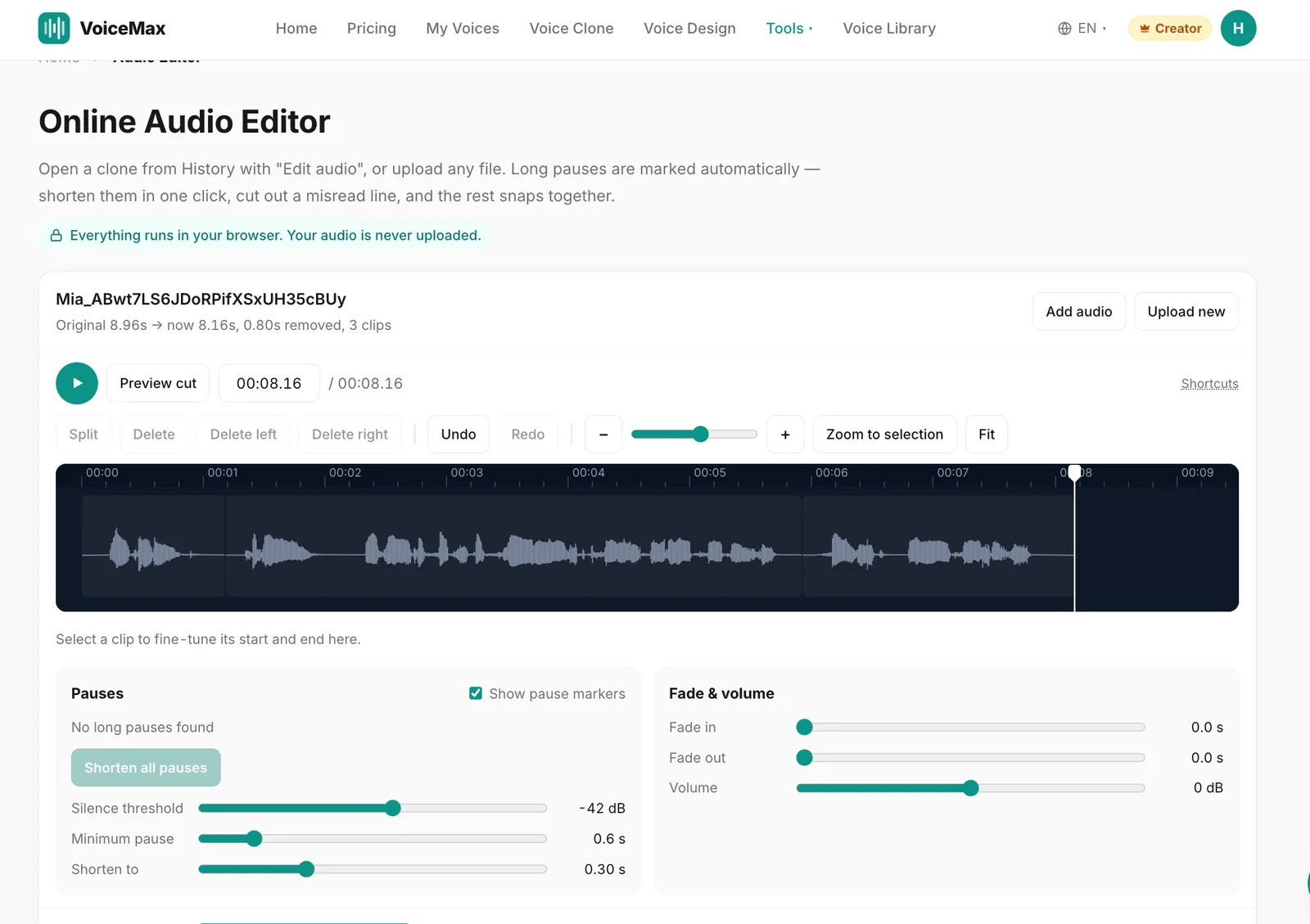
Privacy note: the editor processes audio locally in your browser, so the file you are editing is not sent to VoiceMax servers.
Subtitles stay in sync: if you generated subtitles (SRT) with a voice clone and open it from History with Edit audio, the subtitles open with it. When you shorten pauses or cut a line, the subtitle timings are recalculated to match, and you can export the updated SRT alongside the audio.
Your original is safe: exporting downloads a new file. The original generation in History stays unchanged for its 7-day History window, so you can go back and try a different edit.
Before you cut: clean up noise first
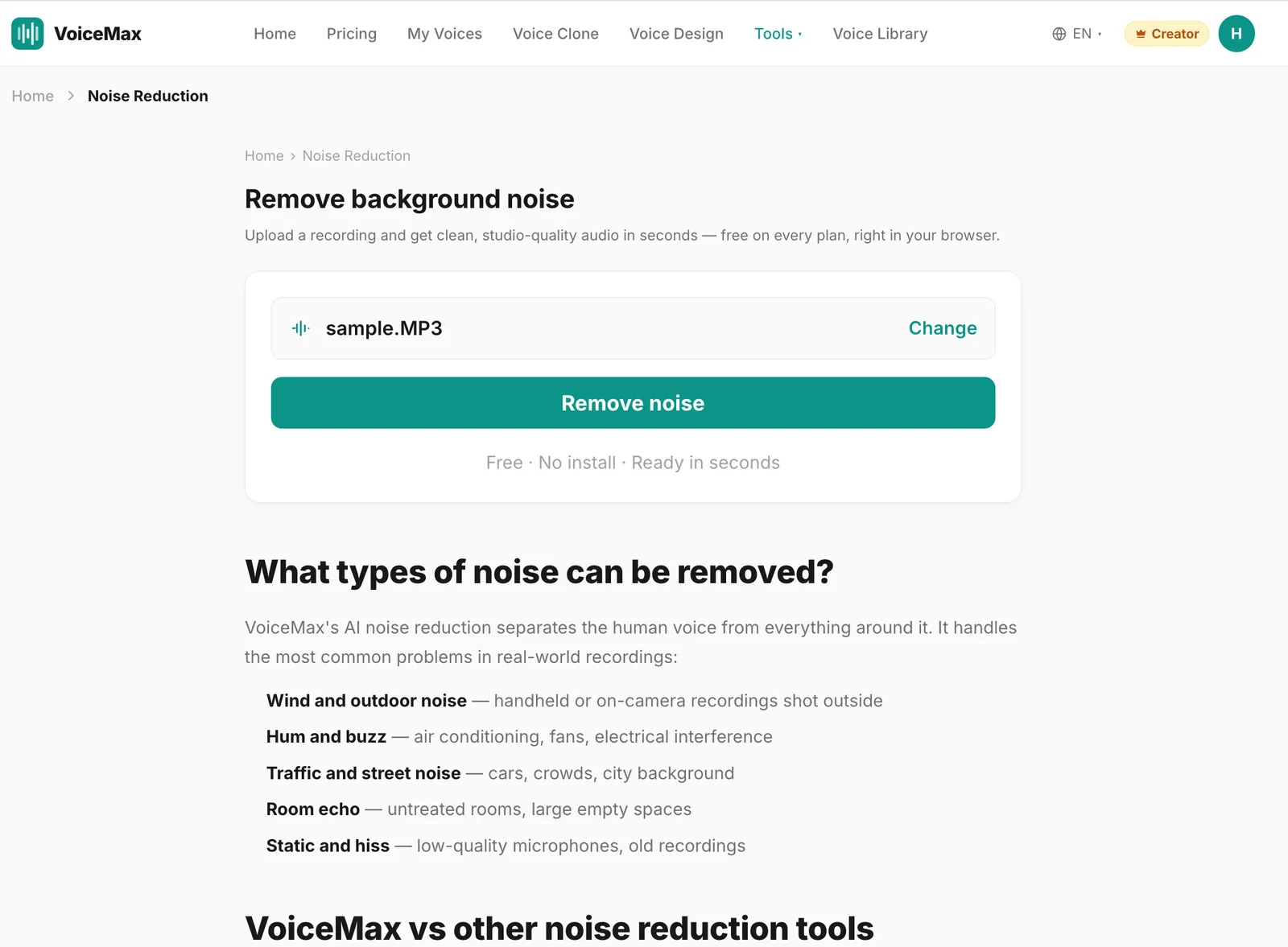
Silence detection works by finding parts of the recording that are quieter than speech. If the "silence" is full of hum, fan noise, or traffic, the detector has a harder time telling a pause from a soft word, and your cuts can land in the wrong place.
A better order of operations:
- Remove background noise with AI noise removal, which is free on every VoiceMax plan.
- Then remove silence in the editor.
- Then adjust volume and add fades.
Cleaning first also makes your edits less noticeable: when the background is quiet, a shortened pause does not create a sudden jump in room tone.
Tips for AI-generated voiceovers
AI voices can produce pauses that are longer than you want, especially around ellipses, dashes, and line breaks. You can fix this at two points.
In the script (before generating):
- Replace "..." with a comma when you only want a short beat.
- Remove empty lines between sentences if you do not want paragraph-length gaps.
- Split very long scripts into sections, then join them in the editor.
In the editor (after generating):
- Shorten the marked pauses to your target sentence gap.
- Keep one longer pause before your key point or call to action; it gives the listener a moment to focus.
- Listen to the whole piece once at the end. Pacing problems are easier to hear in context than clip by clip.
For more ways to shape delivery through punctuation, see our guide to scary text to speech, where pauses are used deliberately for tension.
Common mistakes when removing silence
| Mistake | Why it hurts | Better approach |
|---|---|---|
| Deleting every pause | Speech sounds rushed and synthetic | Shorten to rule-of-thumb lengths |
| Cutting mid-breath | Leaves a clipped, unnatural sound | Cut just before the breath or keep the full breath |
| Threshold set too high | Soft words and word endings get cut off | Lower the threshold or review marked pauses manually |
| No fades at the start and end | Audible clicks and abrupt starts | Add short fade-in and fade-out |
| Editing before denoising | Detector confuses noise with speech | Remove noise first |
| Forgetting subtitles | Captions drift out of sync | Re-time subtitles or use an editor that does it for you |
Quick checklist before you export
- Background noise removed before editing
- Lead-in and trailing silence trimmed
- Sentence gaps around 0.4–0.8 seconds, paragraph gaps around 0.8–1.5 seconds (rules of thumb)
- Deliberate pauses before key points kept
- Misread lines and retakes cut
- Fade-in and fade-out added
- Subtitles re-timed or exported from the editor
- Full piece played once at normal speed, start to finish
Frequently asked questions
How do I remove silence from audio quickly?
Use an editor that detects pauses automatically. In the VoiceMax Audio Editor, long pauses are marked on the timeline when you open the file, and you can shorten each one with a click, cut misread lines, add fades, and export the result as MP3 or WAV.
Should I remove all pauses from my audio?
No. Removing every pause makes speech sound rushed and robotic. As a rule of thumb, keep about 0.4–0.8 seconds between sentences and 0.8–1.5 seconds between paragraphs, and keep deliberate pauses before key points.
Is my audio uploaded when I use the VoiceMax Audio Editor?
No. The Audio Editor processes audio locally in your browser, so the file you are editing is not sent to VoiceMax servers. There is nothing to install, and edits happen instantly on your own device.
What file formats can I edit?
You can upload MP3, WAV, M4A, AAC, FLAC, and OGG files up to 200 MB each. Select several files to join them in order, up to 20 minutes in total. Edited audio exports as MP3 or WAV.
Do subtitles stay in sync after I remove silence?
Yes, if you open a voice clone with subtitles from History using Edit audio. The subtitles open with it, their timings are recalculated when you shorten pauses or cut a line, and you can export the updated SRT file alongside the edited audio.
Should I remove background noise before removing silence?
Yes. Silence detection is more accurate on clean audio, because noise can look like quiet speech. Run AI noise removal first, which is free on every VoiceMax plan, then shorten pauses in the editor.
Who can use the VoiceMax Audio Editor?
The Audio Editor is included in the VoiceMax Creator plan. On the Free and Starter plans you can still clean recordings with AI noise removal, which is free on every plan.